
Power tools for the Mac. One menu bar.
macOS marks a file that came from the web. If the first open says the app is damaged, that mark is what it is refusing. In Terminal, after the app is in Applications:
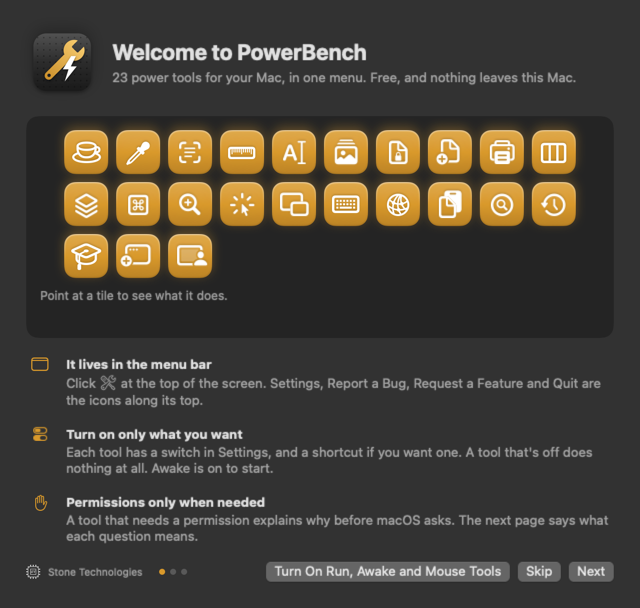
xattr -dr com.apple.quarantine /Applications/PowerBench.appPowerBench is a set of twenty-three small tools in one menu bar app, Stage the presenter among them. Each tool has a switch. A tool that is off does nothing, and asks for nothing. The first open shows every tool as a tile; point at one to see what it does, and one click turns on the three that need no permission.
The first open
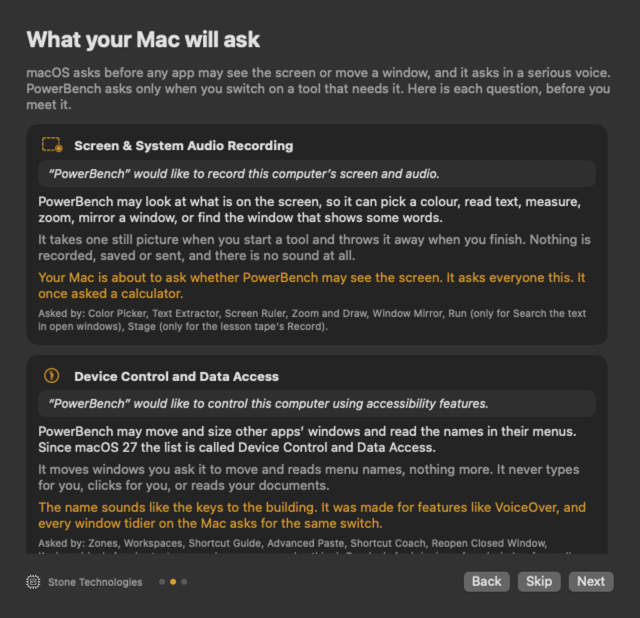
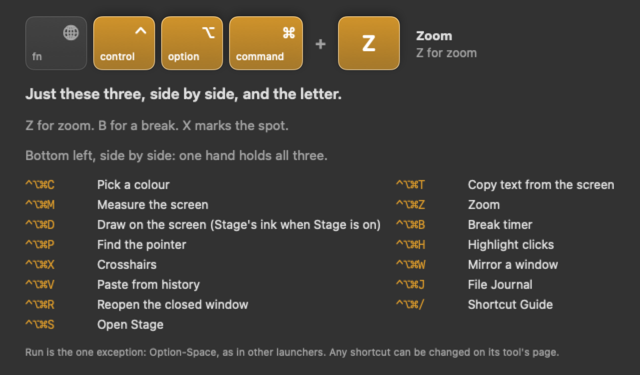
The welcome has three pages, and Skip closes it on any of them. The tools, as tiles. Then What your Mac will ask: each question macOS may put to you, before it does, with the words you'll see, what they mean, why it's safe to say yes, and which tools ask, with a little fun at the process's expense. Then the keyboard card: most shortcuts are Control, Option and Command, side by side at the bottom left, held together, and a letter that is the word it starts. Z for zoom, B for a break, S for Stage. Settings › General keeps the card.
The menu
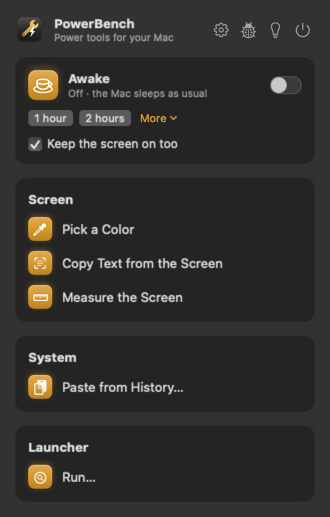
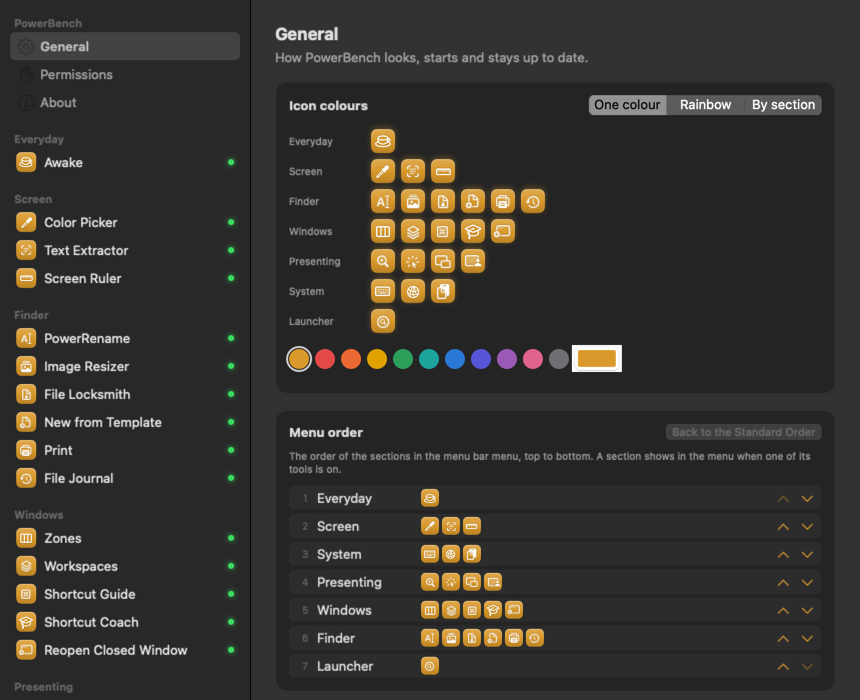
Click the wrench in the menu bar. Along the top are four icons: Settings (Command-comma), Report a Bug, Request a Feature, and Quit (Command-Q); point at one to see its name, and Check for Updates joins them once updates are on. Under them is a card for each section that has a tool on: Everyday, Screen, System, Presenting, Windows, Finder, and Launcher, in that order to start with. Settings › General › Menu order moves any section up or down, and Back to the Standard Order puts them back. A taller menu than the screen scrolls, with the top row kept in place. With nothing on, the menu offers Run, Awake and Mouse Tools in one click.
Awake
The first tool. It keeps the Mac awake until it is turned off, for a length of time, until a time of day, while an app is open, or while a download is still growing. The menu bar icon turns into a cup while it holds. macOS lists the hold as PowerBench Awake. A shortcut can turn it on and off from any app.
The screen
Three tools work on a still picture of every display, taken the moment one starts, so nothing moves while you aim. They need Screen Recording, and each asks for it when it is switched on.
- Color Picker
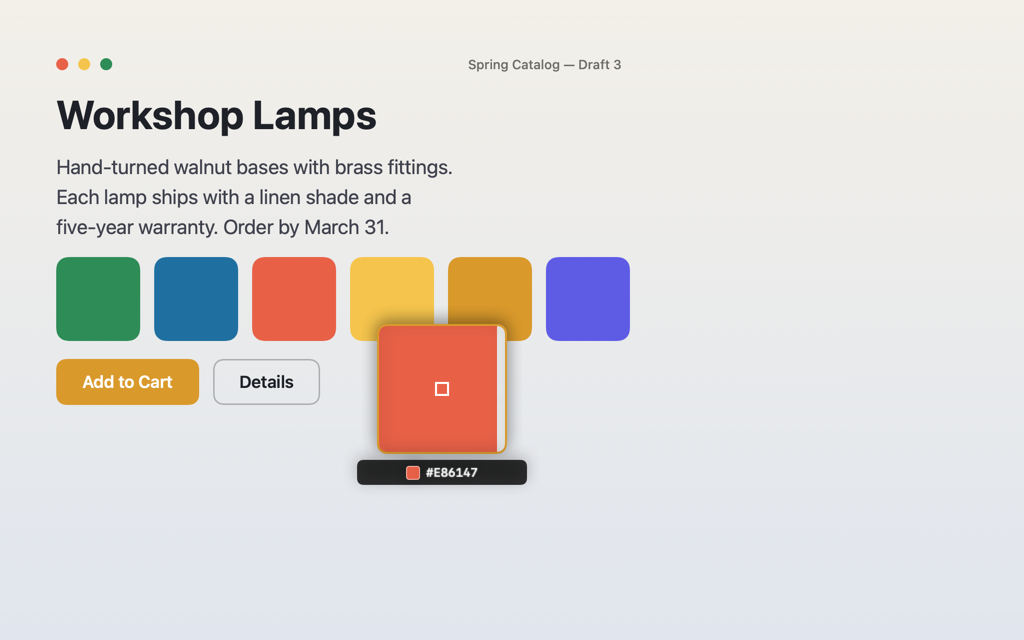
- A loupe follows the pointer. A click copies the color as HEX, CSS rgb() or hsl(), SwiftUI, or AppKit. Arrow keys move one pixel. Recent colors stay in the menu.
- Text Extractor
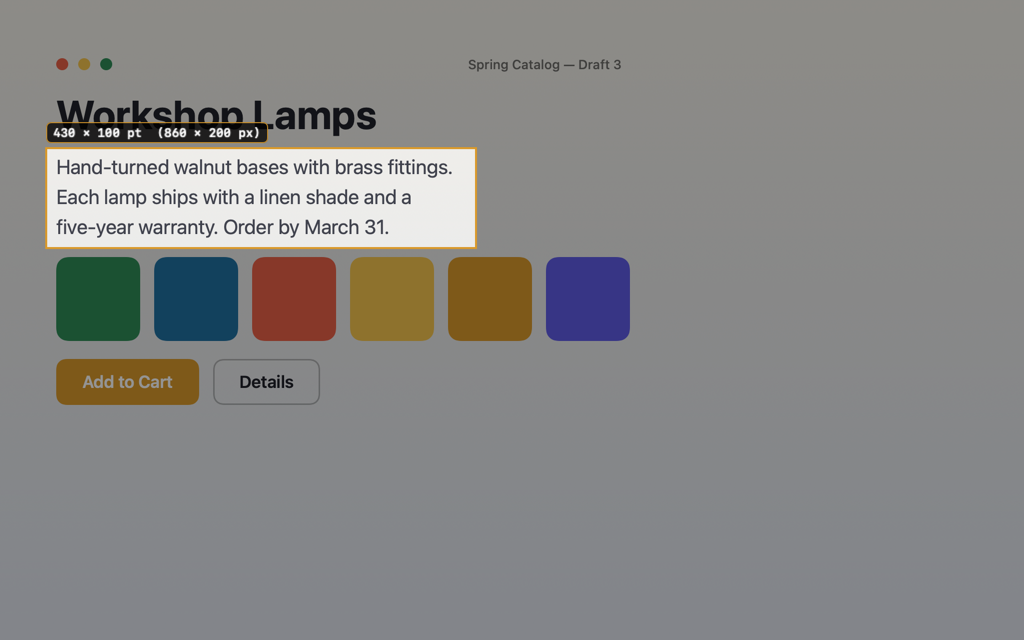
- Drag a box over any text on screen, and it is on the clipboard. QR codes too. The Mac's own text recognition reads it, on this Mac.
- Screen Ruler
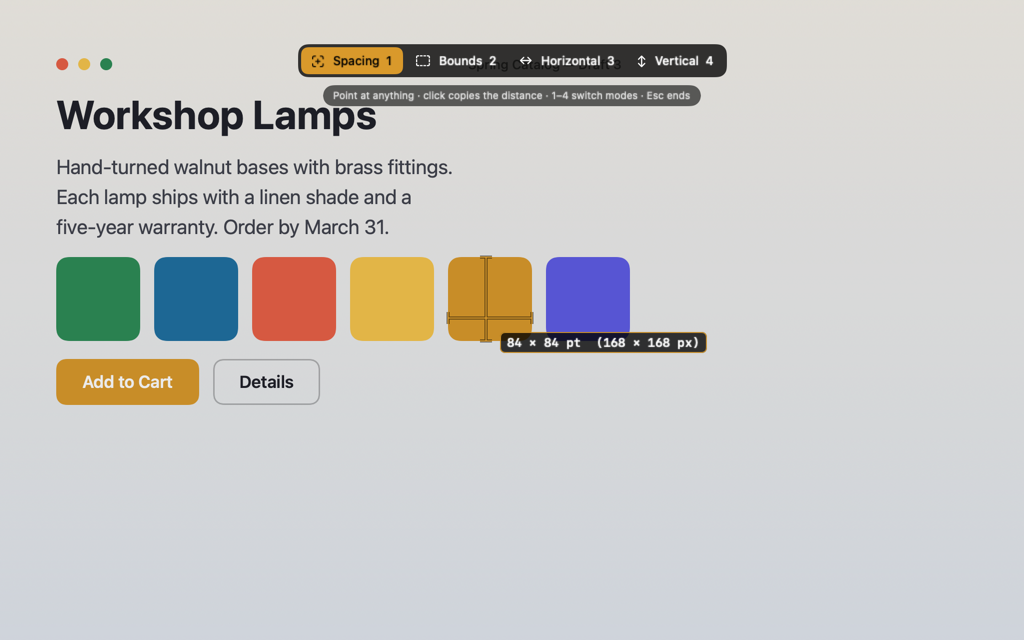
- Point at anything to see the space to the nearest edges, or drag a box to measure it. Points, with pixels on a Retina display. A click copies the size.
The Finder
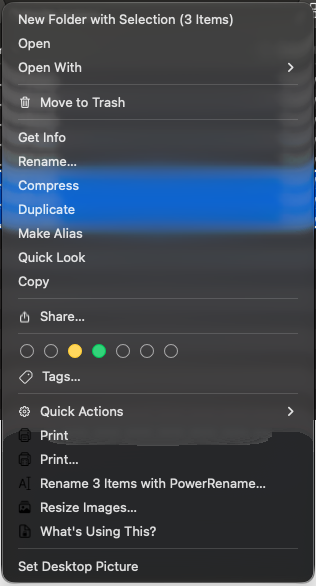
Five tools live on the Finder's right-click menu, as they do in Windows, and File Journal keeps a record of the Finder's moves. They need the Finder extension, which macOS asks you to switch on once in System Settings; PowerBench opens the page. The extension sees only the files you right-click, and only when you pick an item.
- Print on the menu itself. Print sends the files straight to the default printer; Print… opens the dialog first. PDFs, pictures, and text print as one job without opening an app. A Word or Pages file goes to its own app with a print request.
- PowerRename
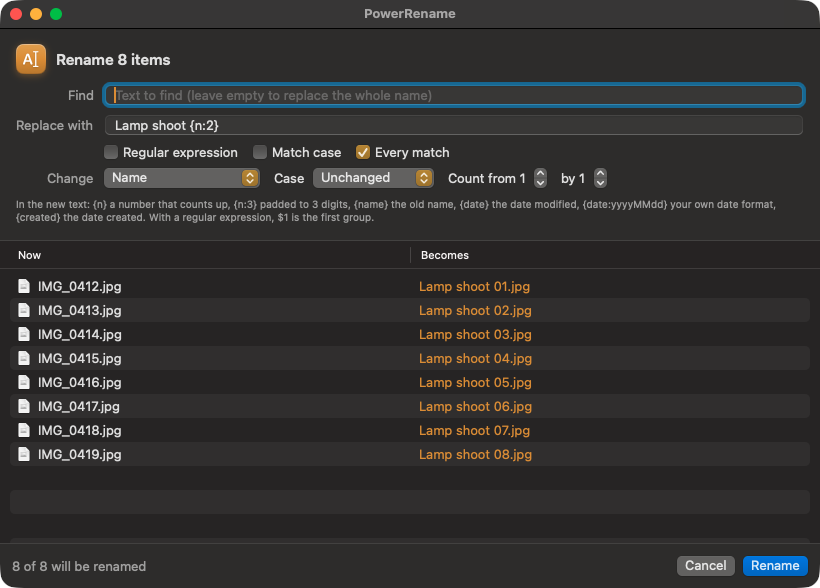
- Rename many files at once: find and replace, regular expressions, a counting number, case, and dates. Every new name shows before anything moves, clashes are marked, and one undo puts every name back.
- Image Resizer
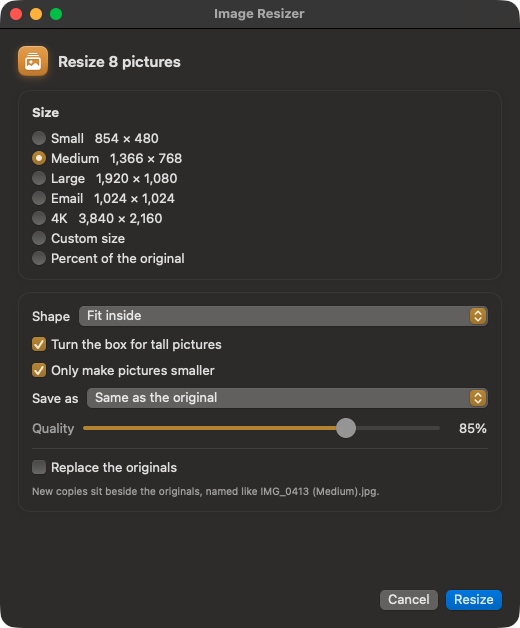
- Pick pictures, pick a size, done. Presets or your own size, fit or fill, any format. Pictures are turned upright and keep their details. New copies sit beside the originals unless you say otherwise.
- File Locksmith
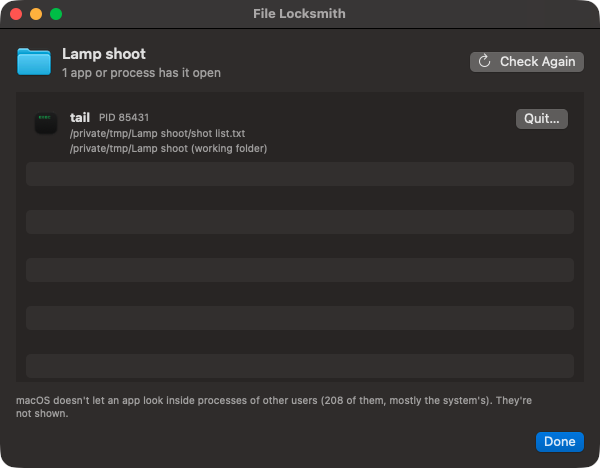
- When a file won't move or a drive won't eject: What's Using This? lists the apps that have it open, and can ask one to quit.
- New from Template
- Right-click inside a folder for a new text file, Markdown, web page, script, or anything you keep in your templates folder.
- File Journal
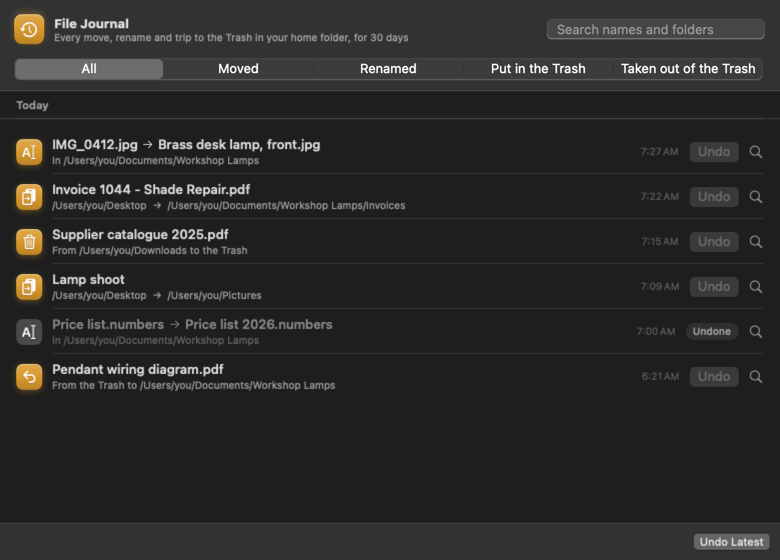
- Every move, rename, and trip to the Trash in your home folder, for 30 days (or 7, 90, or a year), whichever app or the Finder did it. Control-Option-Command-J opens the journal: search it, filter it, and Undo any line, or Undo Latest from the menu. It leaves out Library, hidden files, and downloads still arriving, and needs no permission.
The windows
Five tools move and read other apps' windows and menus, so they need the permission macOS calls Device Control and Data Access (Accessibility before macOS 27); PowerBench explains it before macOS asks.
- Zones
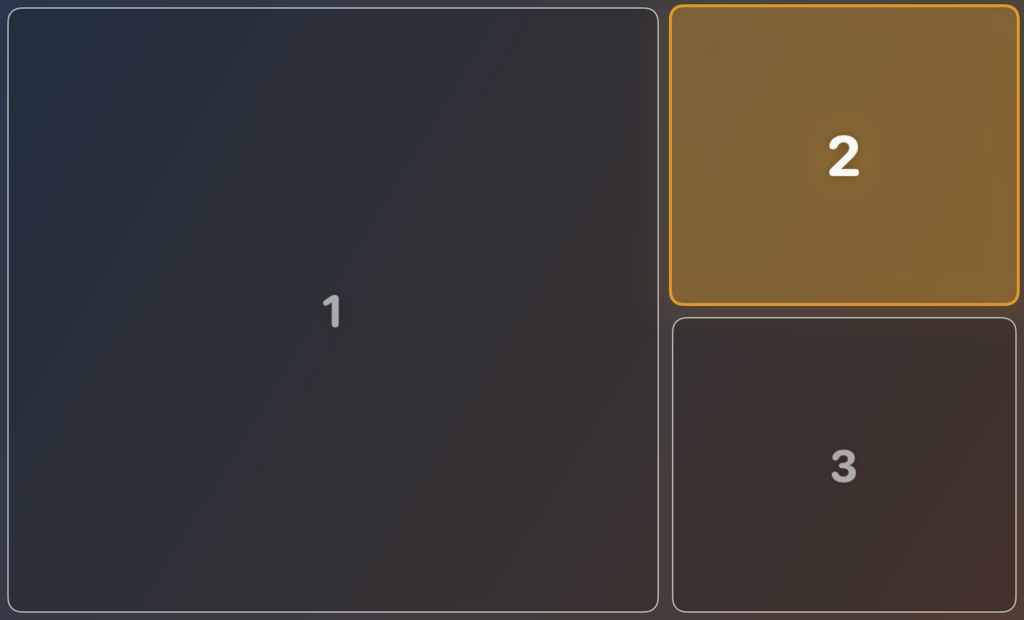
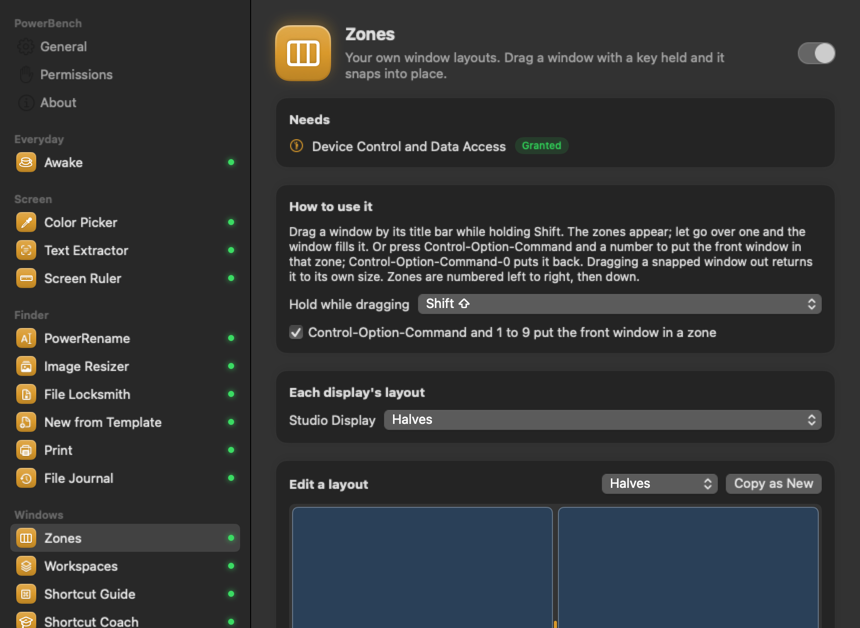
- Your own window layouts, one per display: halves, thirds, a grid, a main column with a side one, or your own, drawn by dragging the lines between zones. Drag a window by its title bar while holding Shift and the zones appear; let go over one and the window fills it. Control-Option-Command and a number does it from the keyboard, Control-Option-Command-0 puts it back, and dragging a snapped window out returns it to its own size.
- Workspaces
- Save the windows you have open, as a set. Open the set later and PowerBench opens any app that isn't running and puts every window back where it was.
- Shortcut Guide
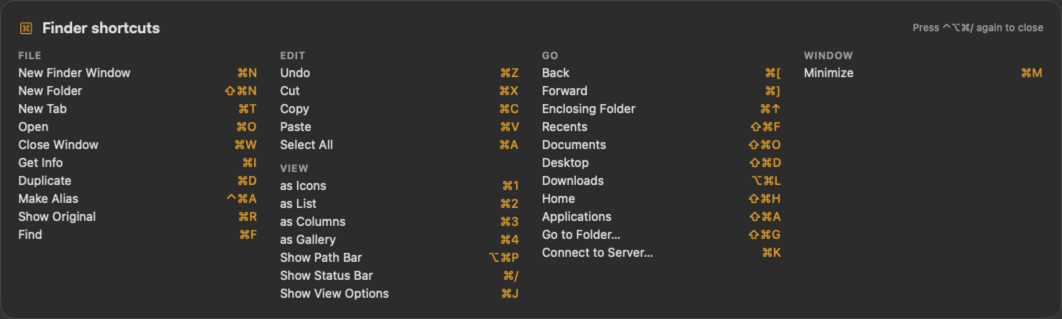
- Control-Option-Command-/ shows every shortcut the front app has, read from its own menus. Holding ⌘ can show it too, with macOS's Input Monitoring permission.
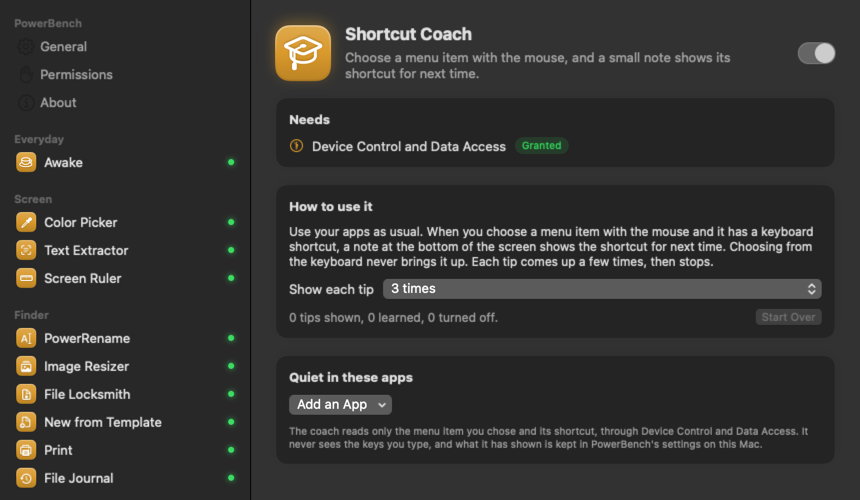
- Shortcut Coach
- Use your apps as usual. When you choose a menu item with the mouse and it has a keyboard shortcut, a small note at the bottom of the screen shows the shortcut for next time. Each tip comes up a few times (once, 3, 5, or every time), then stops; apps you name stay quiet. It reads only the menu item you chose, never the keys you type.
- Reopen Closed Window
- Closed a window by mistake? Control-Option-Command-R brings it back, in any app: the document it showed, or the browser's own Reopen Last Closed Window. Press it again for the one before. The last 20 are kept, and listed in Settings and the menu.
Presenting and the mouse
- Zoom and Draw
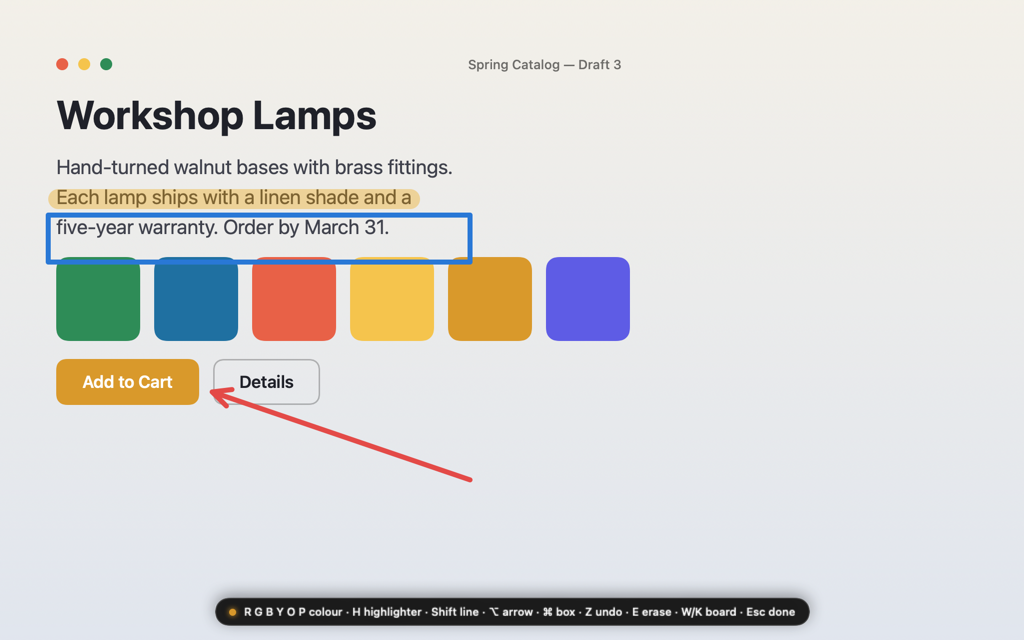
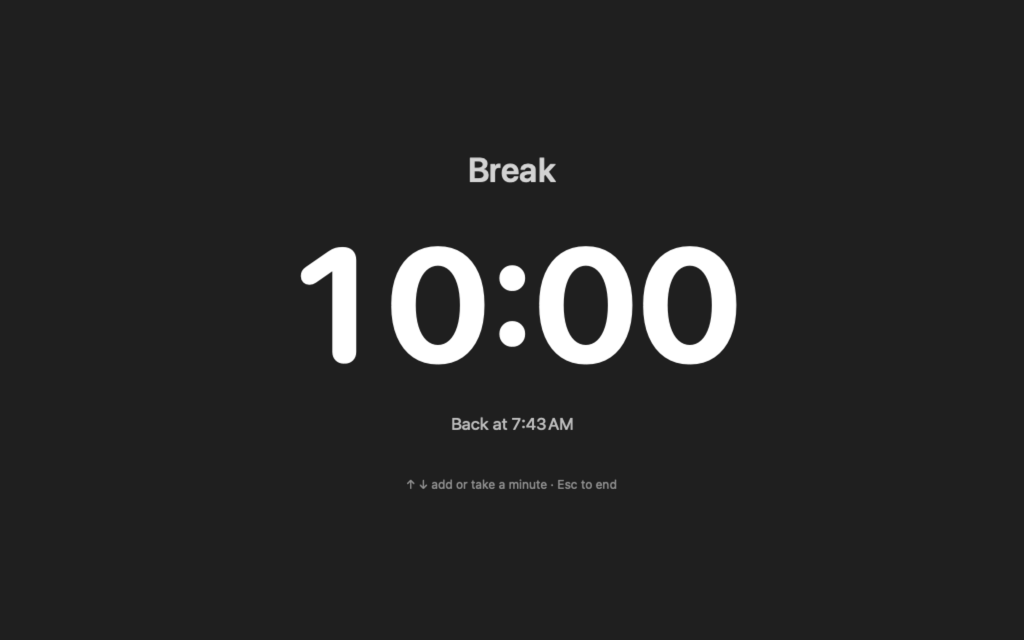
- Control-Option-Command-Z zooms in around the pointer and follows it; the arrow keys or the scroll wheel change how far. A click freezes it to draw on. Control-Option-Command-D draws on the screen as it is (while Stage is on, that key is Stage's live ink instead): R, G, B, Y, O, P for the pen's colour, H for a highlighter, Shift for a straight line, Option for an arrow, Command for a box, Z to undo, W or K for a whiteboard or blackboard. Control-Option-Command-B puts a break timer on every display.
- Mouse Tools
- Find the pointer (everything dims but a circle around it), rings at every click for a recording or a demo, and crosshairs through the pointer. No permission needed.
- Window Mirror
- A live copy of a window, or of the part you drag out, floating over everything else. macOS doesn't let one app pin another's window on top; the mirror is the honest way to do it.
The system
- Keyboard
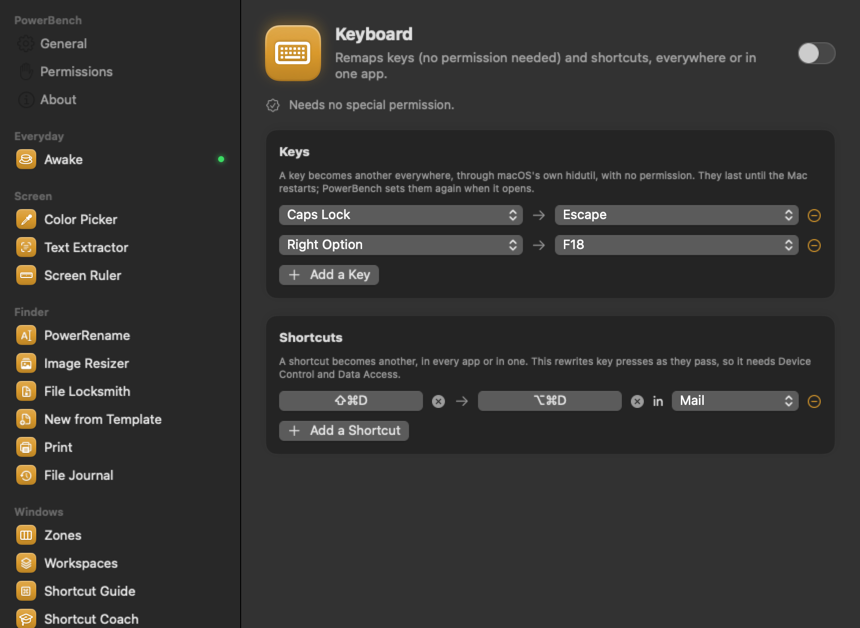
- Turn one key into another everywhere (Caps Lock into Escape, say) through macOS's own key mapping, with no permission. Or turn a shortcut into another, in every app or in one; that part needs Device Control and Data Access.
- Hosts Editor
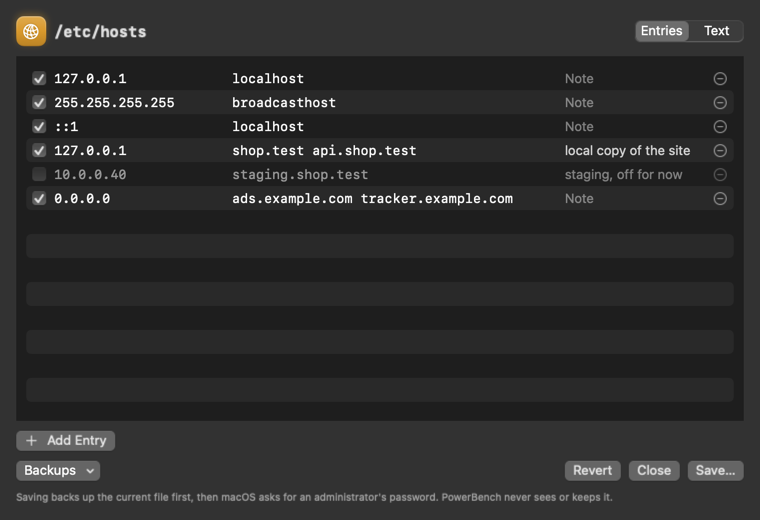
- The hosts file as a list: turn entries on and off, change them, add one, or edit the text. Before saving, PowerBench checks every address and name, warns if localhost would go missing, and backs up the file as it was. macOS then asks for an administrator's password; PowerBench never sees it.
- Advanced Paste
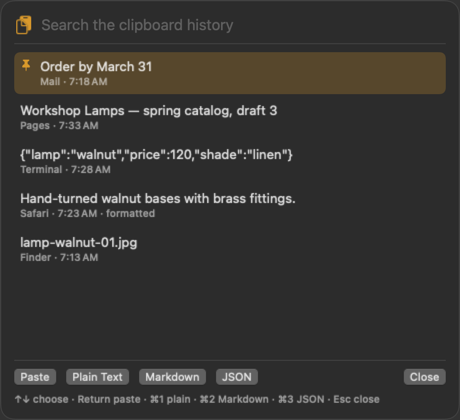
- Control-Option-Command-V opens the clipboard history near the pointer. Paste an item as it was copied, as plain text, as Markdown with its links and bold kept, or as JSON. Pin what you reuse. Passwords a password manager marks private are never kept, and the history stays on this Mac.
Run
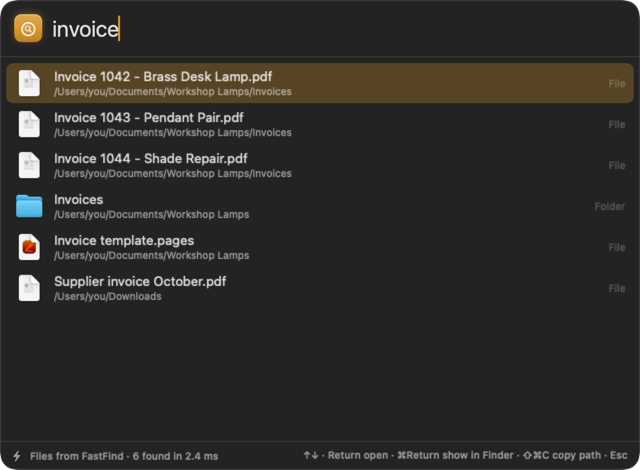
Option-Space, in any app, and type. Run finds apps, PowerBench's own tools, System Settings pages, and files. It adds up a sum and converts a unit, and Return copies the answer. When FastFind is running, the files come from FastFind's list of every file on every drive, in milliseconds, and FastFind's own search words work. When it isn't, Run asks Spotlight and offers to open FastFind. No permission needed.
Run can also find the window that shows some words: a line in an email, a heading in a PDF, a figure in a spreadsheet. Turn on Search the text in open windows in Settings › Run, and type three letters or more, or w: and the words. Return brings that window forward. It reads the open windows on the current desktop with the Mac's own text recognition when Run opens, needs Screen Recording, and forgets the words when Run closes.
- saf
- Safari, first.
- 12*4+3
- 51. 15% of 80 and sqrt(2) work too.
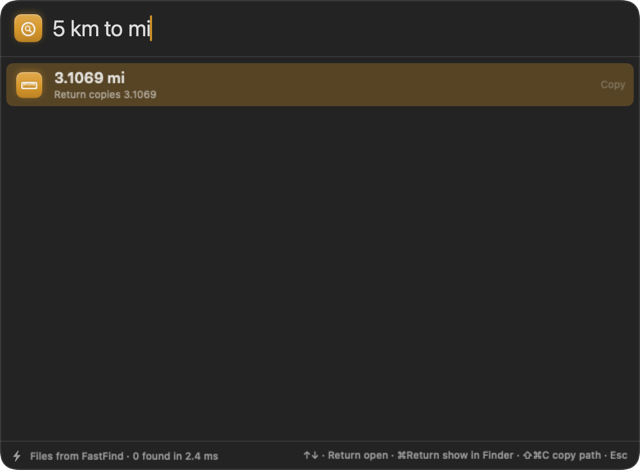
- 5 km to mi
- 3.1069 mi. Lengths, weights, temperatures, volumes, speeds, areas, times, and file sizes.
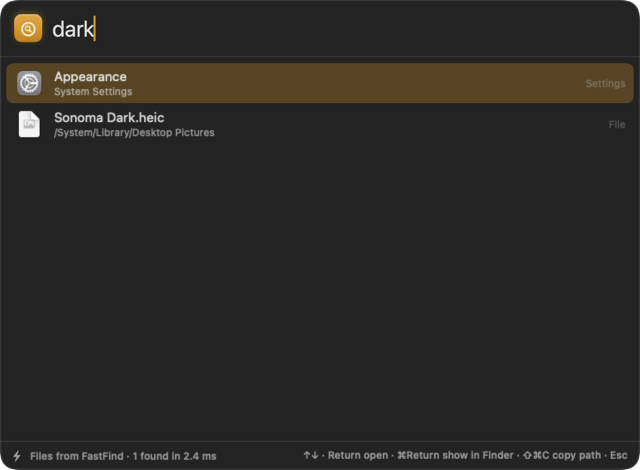
- dark
- The Appearance page in System Settings.
- ext:pdf invoice
- PDFs with invoice in the name, through FastFind.
- w: order by
- The open window with those words in it.
Stage
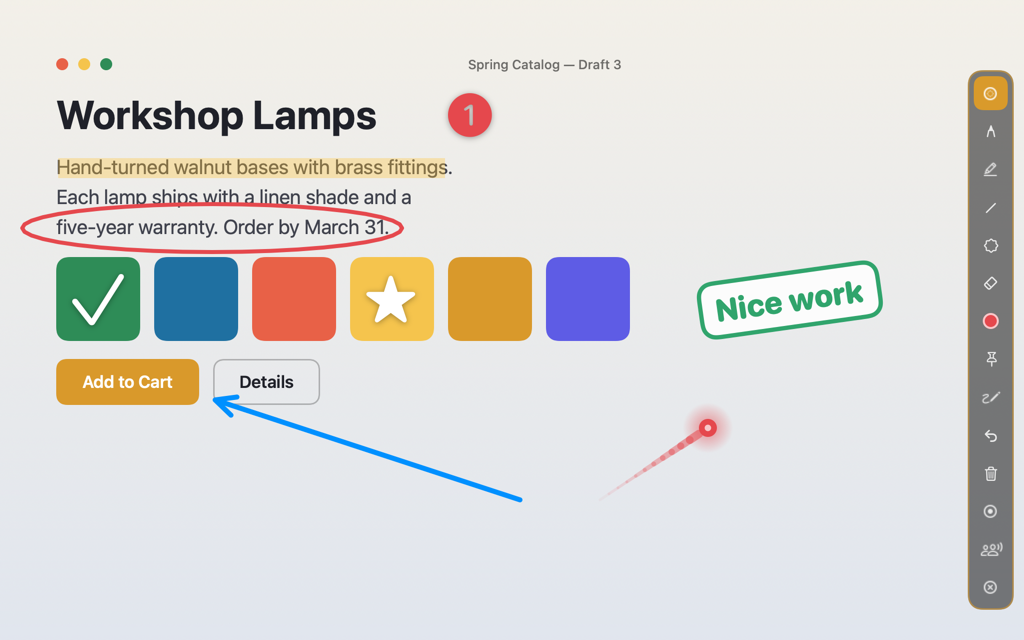
The presenter, for teachers and anyone in front of a room. Control-Option-Command-S opens a clear layer over every display and a floating palette. Draw, point and stamp over a live screen, and the apps underneath keep working: a video plays, a page scrolls, and the marks stay where you put them. Control-Option-Command-D switches between drawing and letting clicks through. Nothing runs until Stage is opened, and drawing needs no permission. The Presenter Guide has all of it, and the teacher card is one page to keep by the keyboard.
- Live ink
- Pen, highlighter, line, arrow and box, in any colour. Marks drawn with Pin on stick to the window under them and move with it.
- Pointer
- A laser dot, ring, arrow or crosshair, any colour and size, a soft glow or sharp, with a fading trail. Clicks pass through it.
- Stamps
- A tick, a cross, a star, numbers 1 to 9, Nice work, Look here and more, in any colour, size and angle, each staying until it's cleared. Your own PNG, SVG or PDF stamps, and stamp packs in a written format.
- Palette
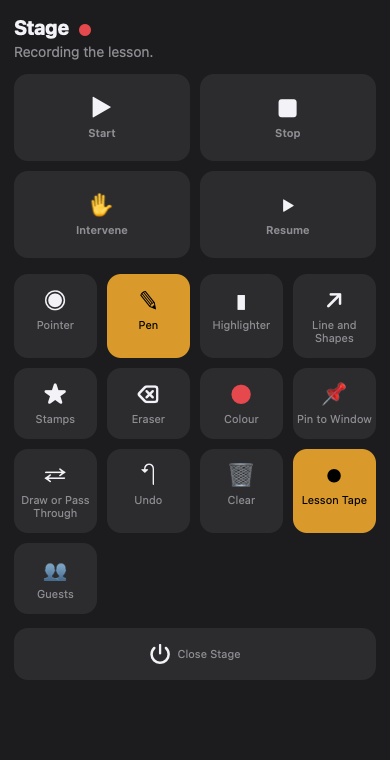
- Fourteen buttons to put in your own order, hide, size and colour, vertical or across.
- Lesson tape
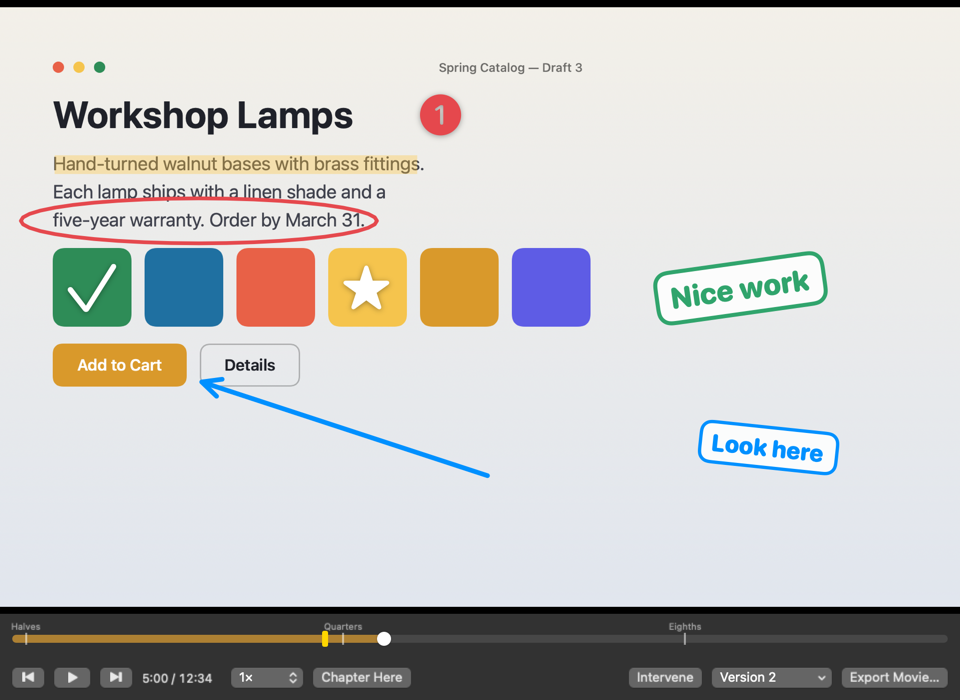
- Records the screen's visuals with your marks as their own track, no sound. Play it at half to double speed with chapter marks. Intervene freezes it for live ink; Resume writes what you drew into the tape at that moment, as a new version. Export a movie to share.
- Guests
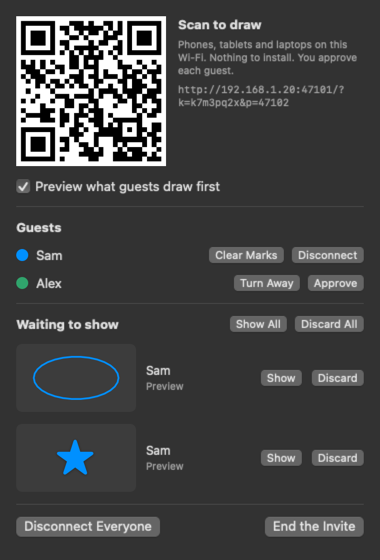
- A QR code lets anyone on the same Wi-Fi draw from a browser, with nothing to install, after you approve them. Each gets a colour, and can draw, point and use the stamps you allow, never type or click on the Mac. Their marks wait for your Show to start with. Disconnect one, or everyone.
- Remote
- The palette's buttons on your iPhone, in the same order, with Start, Stop, Intervene and Resume.

The bench
A tool that needs a permission says why before macOS asks, and only when it is switched on. Each tool can have its own shortcut; most start with Control-Option-Command and a letter, and Run with Option-Space, if those are free. The tiles take one colour, a rainbow, or one per section, and the menu's sections go in the order you choose. Things move a little, and stop moving when Reduce motion is on in System Settings. Updates are built in, and Report a Bug and Request a Feature are along the top of the menu. When macOS shows a permission as on but still refuses it, as it can after a new test build, the tool's page says so and Reset and Reopen clears it.
This version
0.12.0 is the release candidate. Every tool in the plan is in it, with four more since 0.9.0 (File Journal, Shortcut Coach, Reopen Closed Window, and window search in Run) and Stage, the presenter, new in 0.12. 0.11 brought the three-page welcome and the keyboard card. 0.10.1 fixed Settings, which stopped on the PowerRename, New from Template and Print pages in 0.10.0, and says when a permission needs to be granted again. 0.10.2 gives each section's name its own space in Menu order, where Finder's six tiles ran over the word, adds Settings and The menu to the bug form's list, and sends reports to this site. It is signed on this Mac only, so the first open needs the Terminal line above; 1.0 is the same app signed and notarized by Apple, which needs the developer account. The updater turns on with the first build published with it. Nothing goes to the internet but a report you send: no account, and no tracking. Stage's guests and remote connect over your own network only, with a new code each time.
Data
- Version
- 0.12.0 (17), release candidate
- System
- macOS 14. Apple silicon and Intel.
- File
- PowerBench.dmg, 8,490,243 bytes. Open it and drag PowerBench to Applications.
- Check
- SHA-256 081bb065c778b02a7f9df6a84ab9fbd23521ec8733e3a2607cade893e34ca102
- Guide
- PowerBench-Guide.pdf, 4,552,114 bytes, 80 pages, published 10 November 2026. The Power User Guide: every tool, its keys and options, with pictures, and every setting, key, and Terminal command.
- Stage
- Stage-Presenter-Guide.pdf, 1,181,303 bytes, 23 pages, published 10 November 2026. The Presenter Guide: ink, the pointer, stamps, the palette, the lesson tape, guests and the remote. Stage-Teacher-Card.pdf, 85,099 bytes, 1 page: the keys and steps to keep by the keyboard.
- Tools
- Awake, Color Picker, Text Extractor, Screen Ruler, Print, PowerRename, Image Resizer, File Locksmith, New from Template, File Journal, Zones, Workspaces, Shortcut Guide, Shortcut Coach, Reopen Closed Window, Zoom and Draw, Mouse Tools, Window Mirror, Stage, Keyboard, Hosts Editor, Advanced Paste, Run.
- Stays
- On this Mac. PowerBench sends a note only when Send is pressed.
A note does not carry files, file names, or anything on the screen. Notes stay off this page. Privacy